
Using Teams & Loading Saved Lists
Using teams
Now that you’ve generated some teams, here’s what you can do with them.
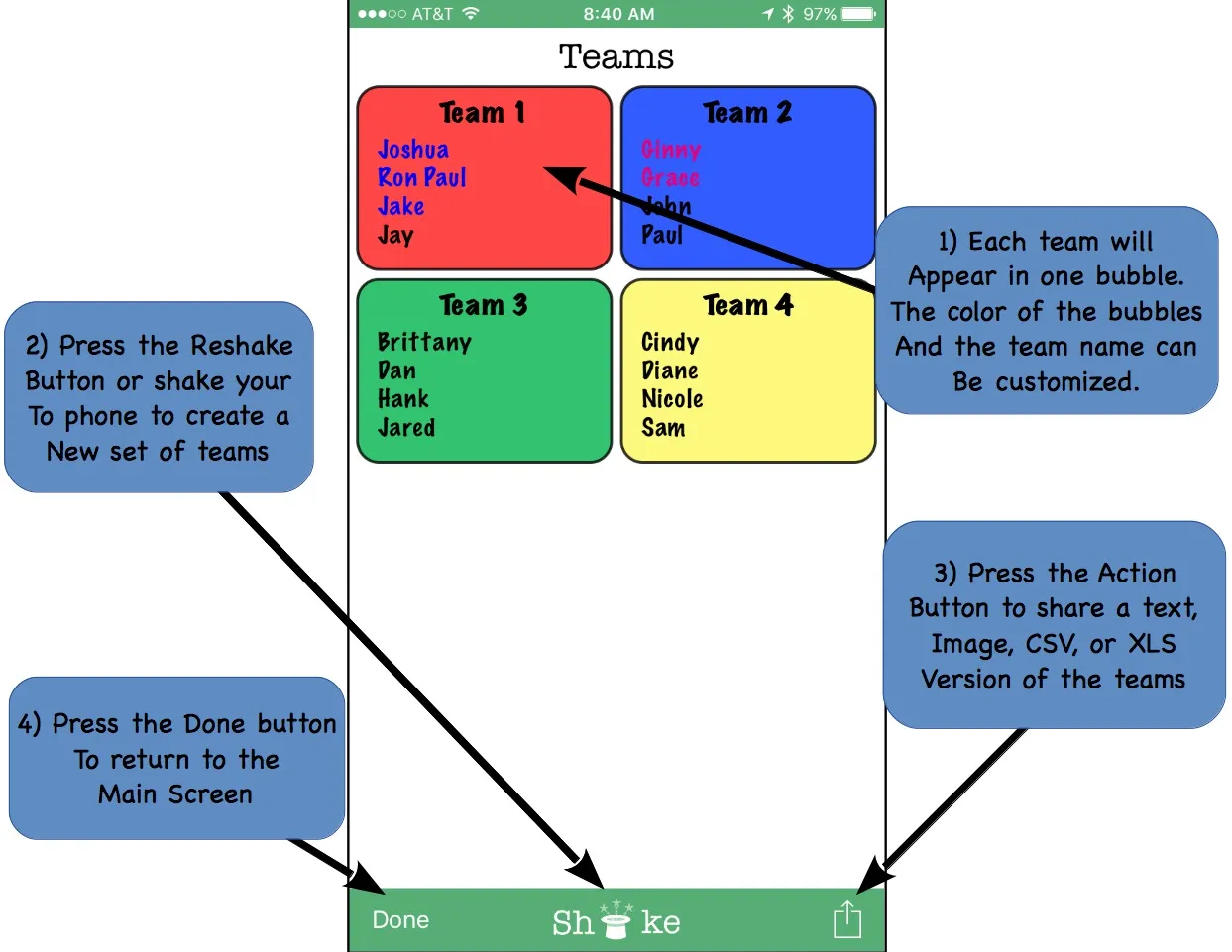
- Team members appear in colored bubbles, sorted alphabetically by last name by default (see the “Sort by Last Name”, “Sort Generated Teams”, and “Never Sort Single Team” options to change this). Team names and colors can be customized — see Configuration Options.
- Press the shake/regenerate control (or shake your device) to create a new random set of teams from the same member list. Disable the “Follow-up Shake” option if you’d rather not risk losing a good set of teams to an accidental shake.
- The action button lets you share your teams:
- Share Teams as Text — via text message, email, or social media.
- Share Teams as Image — a rendered image of the results, saveable to your photos.
- Share Teams as CSV / Excel — a spreadsheet file, ready to open in Excel or Google Sheets.
- Print Teams — via AirPrint-compatible printers (iOS).
- Return to the main screen from here to create a different set of teams.
Loading and deleting saved lists
Earlier, in Getting Started, we mentioned the “Manage Lists” → “Load List” option. Here’s how that screen works in detail.
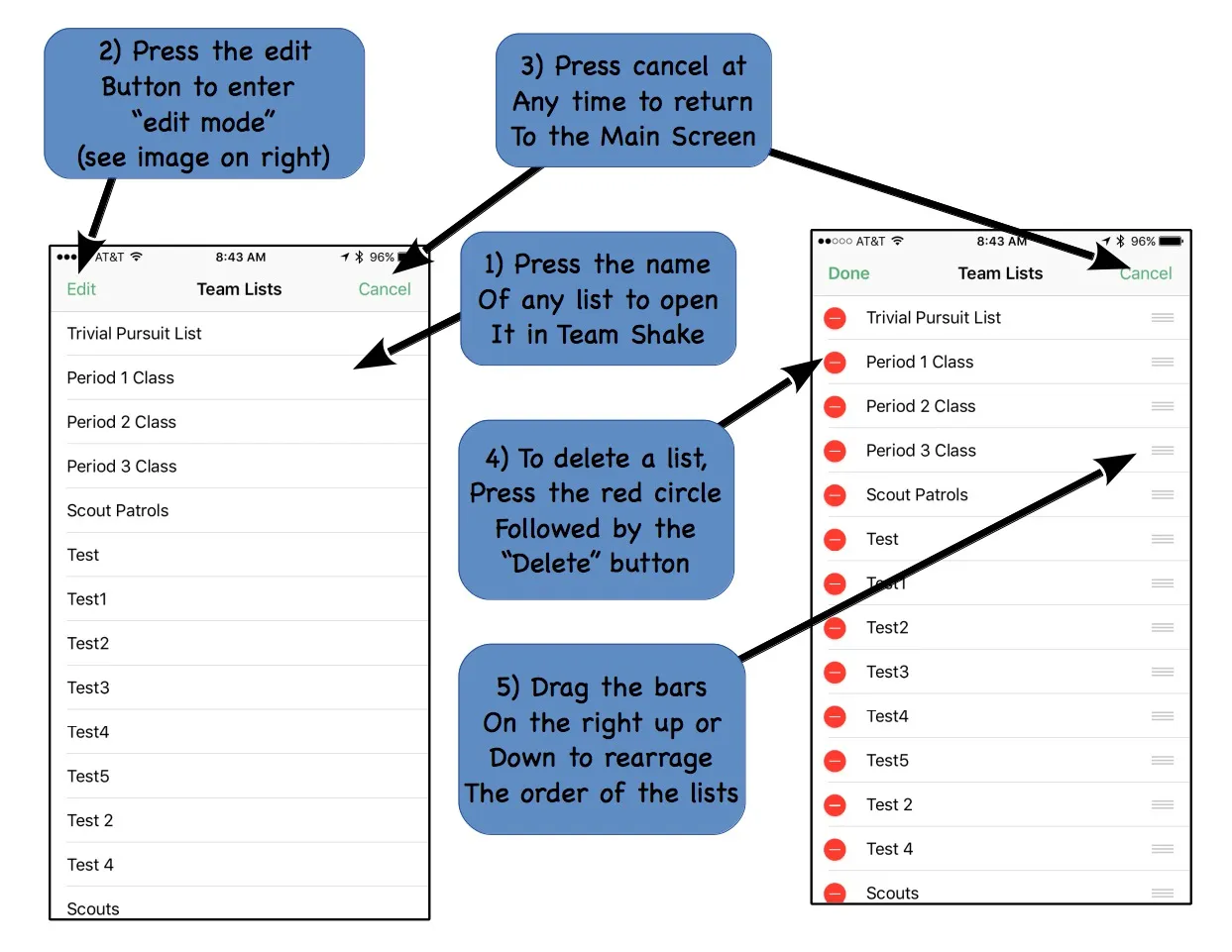
- Tap any list’s name to load it and return to the main screen. This replaces your current list — Team Shake warns you first if you have unsaved changes.
- Press Edit to enter edit mode.
- Press Cancel (top right, in either mode) to return to the main screen without changes.
- In edit mode, delete a list by pressing the red circle next to it, then confirming with the delete button that appears.
- In edit mode, reorder your saved lists by dragging them with the bars on the right of each entry.
Note: renaming a saved list isn’t supported directly — save the list under a new name instead, then delete the old one.