
Backing Up & Restoring Team Shake
Backing up
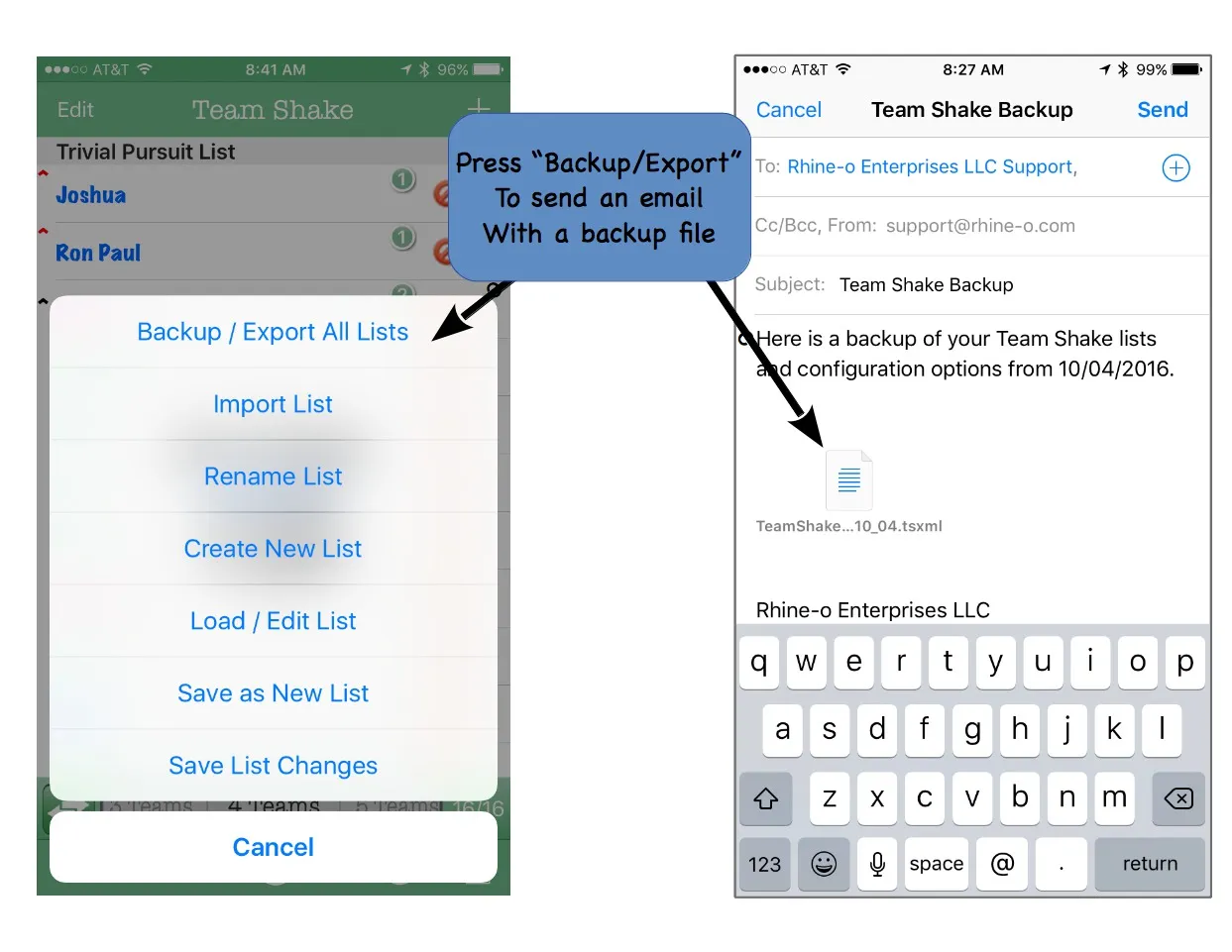
Team Shake can back up all of your lists and configuration options so you can restore them later, or move them to another device. From the main screen, press Manage Lists → Backup / Export. This opens an email with the backup file attached — send it to yourself for safekeeping, or use it to set up a new device.
Rhine-o Enterprises support may occasionally ask for a backup file to help diagnose an issue — it lets us see exactly how your lists and options are configured and reproduce the problem directly.
Restoring a backup
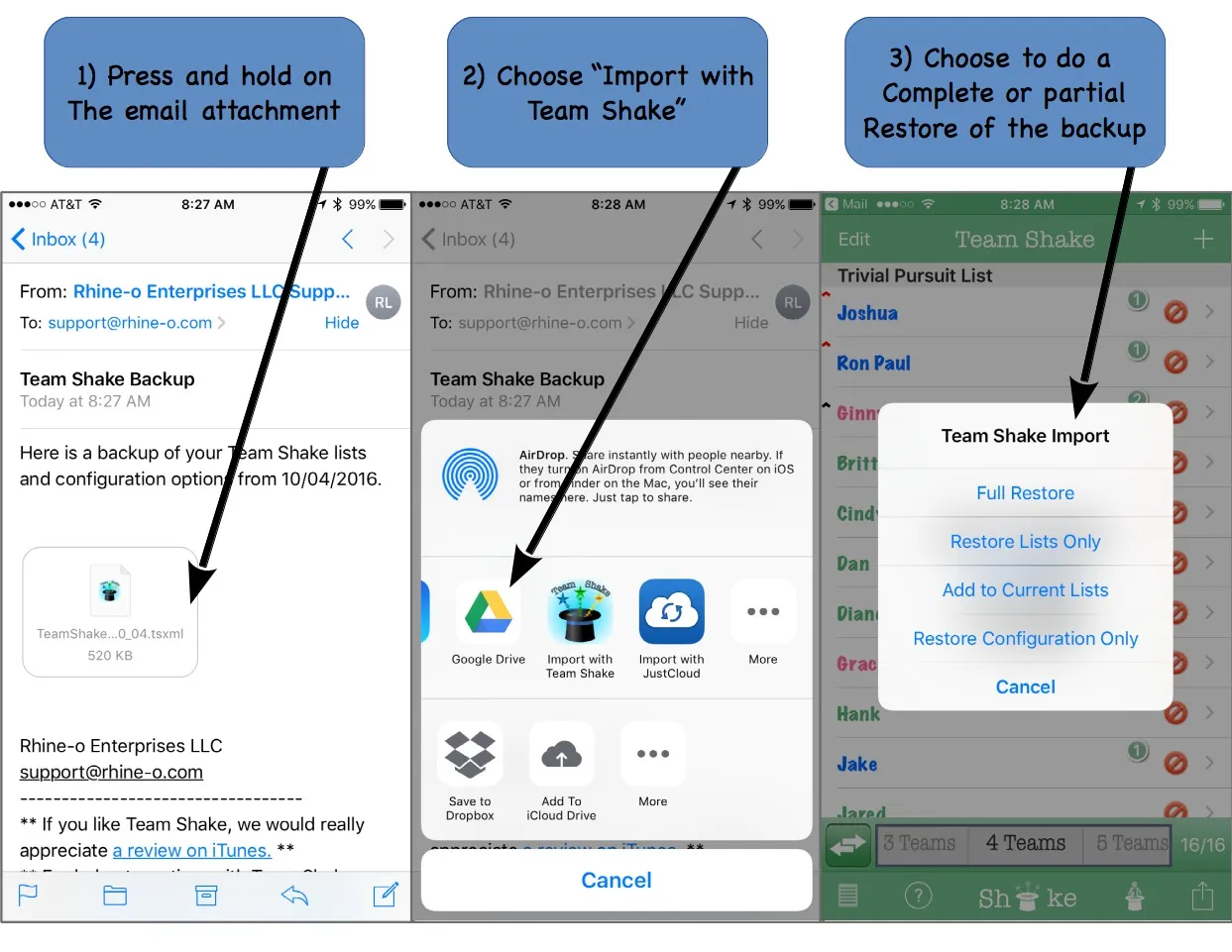
A Team Shake backup file (extension .tsxml) can restore all of your lists and settings, or just part of them:
- Open the email (or Dropbox/Google Drive file) containing the backup, and press and hold the attachment until the Open in… option appears.
- Choose Open in Team Shake.
- Pick a restore mode:
- Full Restore — replaces all current settings and lists with the backup’s. Equivalent to running both “Restore Lists Only” and “Restore Configuration Only.” Ideal for moving to a new device.
- Restore Lists Only — replaces your current lists with the backup’s, without touching configuration.
- Add to Current Lists — adds the backup’s lists alongside your existing ones. If a name collides, you’ll end up with two lists sharing a name; rename one manually to tell them apart.
- Restore Configuration Only — restores settings without touching your lists.
- Cancel — return to Team Shake without restoring anything.