
Importing Lists (CSV / Excel)
Instead of typing every name by hand, Team Shake can import a list of names from a text file or spreadsheet — handy for class rosters, team sign-up sheets, or any list you already have elsewhere.
Opening the Import List screen
There are a few ways to get there:
- From the main screen, press Manage Lists → Import List.
- Email yourself a
.txtor.csvfile in the format below, then press and hold the attachment and choose Open in Team Shake. - Put a
.txtor.csvfile in Dropbox, Google Drive, or similar, and choose Open in Team Shake from there.
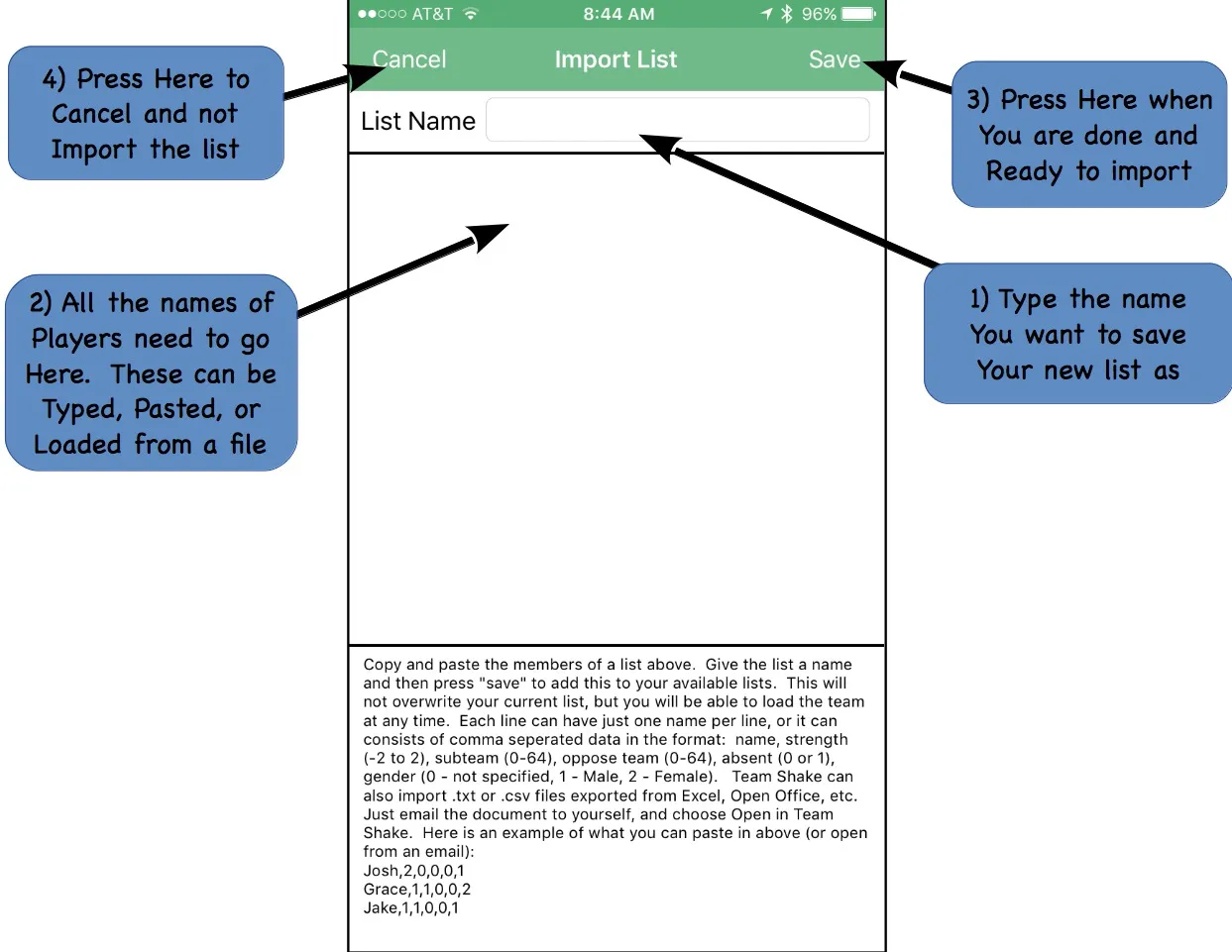
- List Name — the name for the list you’re creating. It won’t load immediately or affect the list you’re currently editing; it’s added to your saved lists instead.
- List of Players — one name per line. Type it directly, paste it from another app, or load it from a file.
- Save — saves the list to your saved lists; you return to the main screen and can continue with your current list or load the one you just imported.
- Cancel — discards anything typed or loaded.
File formats
There’s really one import format, described here as two variations:
Simple format
A plain text file with one name per line, no commas in any name (anything after a comma in a name is dropped). Create this in Word, Notepad, TextEdit, LibreOffice Writer, or similar — just be sure to save as Plain Text. Download an example simple-format file.
Complex format
A comma-separated list with six fields per line:
- Name
- Strength (
-2to2) - Subteam (
0–64) - Oppose team (
0–64) - Absent (
0= present,1= absent) - Gender (
0= unspecified,1= male,2= female)
The easiest way to build this is a spreadsheet in Excel or LibreOffice/OpenOffice Calc, then exporting as CSV
(MS-DOS) in Excel or Text CSV in Calc — use a comma as the field delimiter and double quotes as the text
delimiter if asked. The first row must start with Name in the first column, and every row needs exactly six
columns. Download an example Excel template or the same example as
a CSV file.
Once you have a correctly formatted .txt or .csv file, use Open in Team Shake from Mail, Dropbox, or Google
Drive — or just copy and paste its contents directly into the Import List screen.