
Getting Started with Team Shake
Making teams with Team Shake is simple. Refer to the image below, and the associated directions, for the details on how to pick teams.
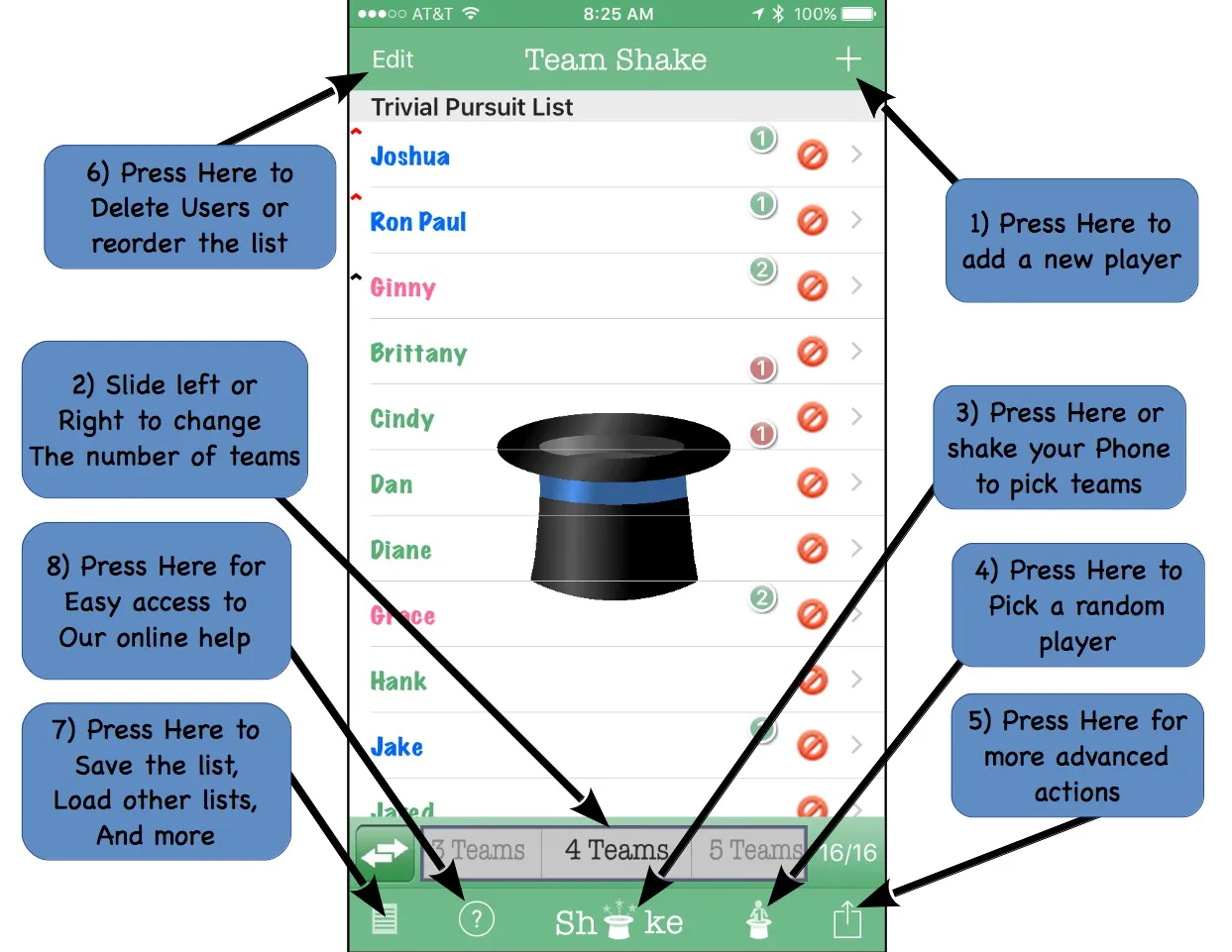
- Press the + button, and a window will pop up allowing you to add a member. Repeat until everyone is added to the list.
- Move the slider left or right to pick the number of teams you want to create.
- Now press the Shake-em Up button, or shake your device up and down. To create simple teams, that’s it — your teams will be created. You can disable the shake gesture with the “Initial Shake” option if you’d rather always use the button.
- Press the dice/random icon to pick a random member from the list. Only members who are not marked absent are eligible.
- The action button in the bottom right gives you additional functions:
- Pick a Random Player — choose one random member and display them on screen, without creating teams.
- Toggle Video Out — mirror the display if your device is connected to a TV or monitor.
- Mark All Absent / Mark All Present — quickly exclude or include everyone from team selection.
- Sort List by Name — reorder the list alphabetically (first or last name, per the “Sort by Last Name” option).
- Configuration Options — open the settings screen covered in Configuration Options.
- Share Team Shake — send a link to Team Shake via text, email, or social media.
- Press Edit to reorder or delete members from the list.
- Press Manage Lists to save, load, or export lists:
- Backup / Export — send a backup file containing all your lists and options.
- Import List — bring in a list typed elsewhere. See Importing Lists.
- Create New List — start a new, blank list.
- Load List — load a previously saved list.
- Save As New List — save your current edits as a new list, leaving the original untouched.
- Save List Changes — save changes to the list you’re currently editing.
- Press Help to reach this documentation from within the app at any time.
Per-member options: strength, subteam, and oppose team
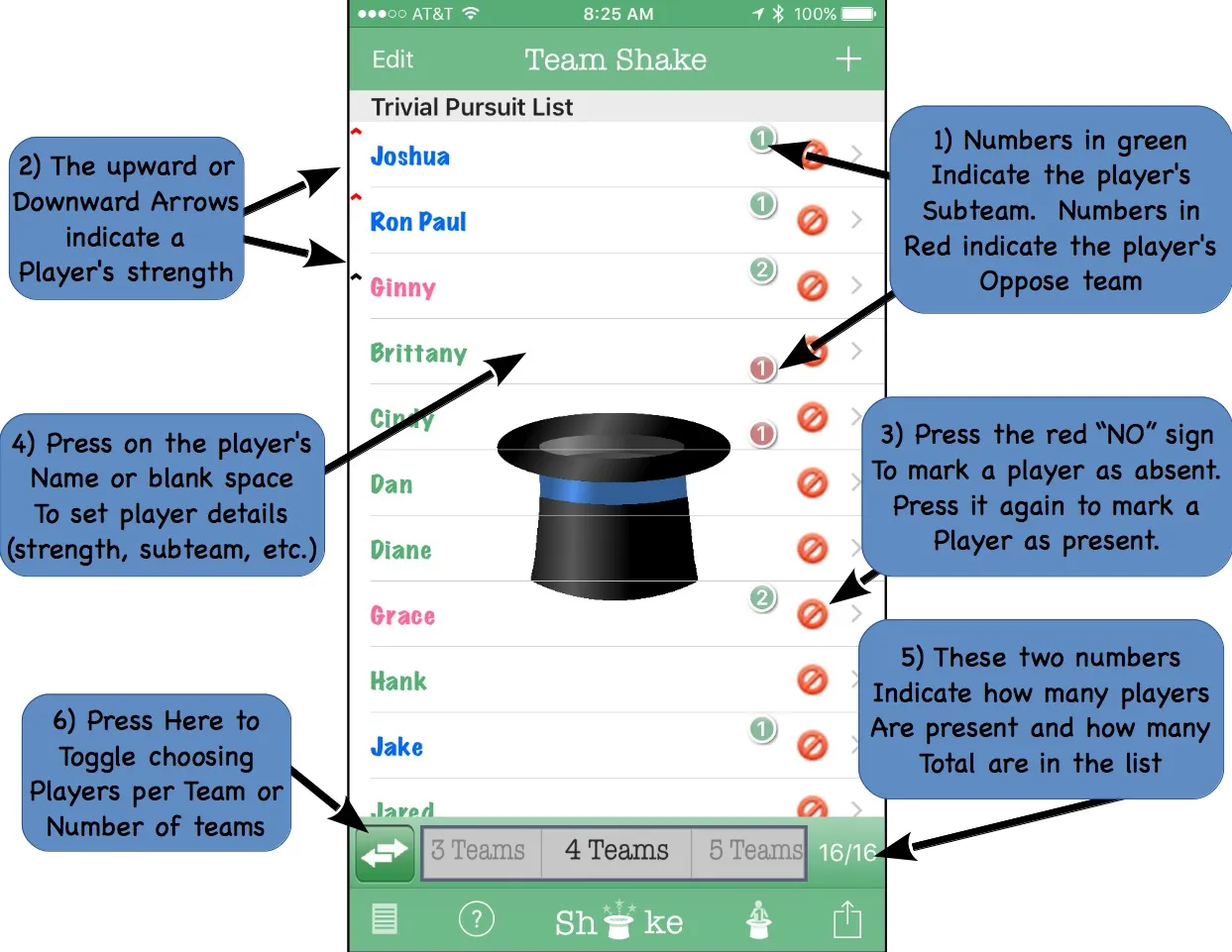
Once you’re comfortable with basic team creation, Team Shake offers several per-member options that change how teams are picked:
- Subteam / Oppose team — the number in a green circle is a member’s subteam; the number in a red circle is their oppose team. Members sharing a subteam number are kept on the same team wherever possible; members sharing an oppose team number are kept apart. Useful for keeping friends together or separating people who don’t work well as teammates. If a combination can’t be honored (e.g. 5 people in a subteam but a team size of 4), Team Shake warns you and does its best.
- Strength — the small arrows next to a name indicate strength: weakest, weak, normal, strong, or strongest. Showing these arrows on-screen is optional (the “Show player strength” setting), useful if you don’t want members to see how they’re rated. Strength only affects team generation when “Balance Team Strengths” is enabled (the default) — Team Shake then distributes strong and weak members evenly across teams. By default, a larger team is treated as an advantage, so a lone “strongest” player tends to land on a smaller team; if that’s not what you want for your game, see “Balance alternates” in Advanced Team Selection Scenarios.
- Gender — assign each member a gender (shown in blue for male, pink for female, green if unset — colors can be toggled off). By itself this has no effect on team selection; combine it with “Balance Male / Female” or “Separate Male / Female” to actually use it, see Advanced Team Selection Scenarios.
- Absent / Present — the red circle next to a member toggles them between present and absent; absent members are skipped without needing to delete them.
- Tap a member’s name (or the empty space in their row) to open their User Details, where name, gender, strength, subteam, and oppose team are all set in one place.
- The two numbers in the bottom bar show total members and how many are currently present.
- The toggle button switches between specifying players per team and number of teams.
Picking a single random player
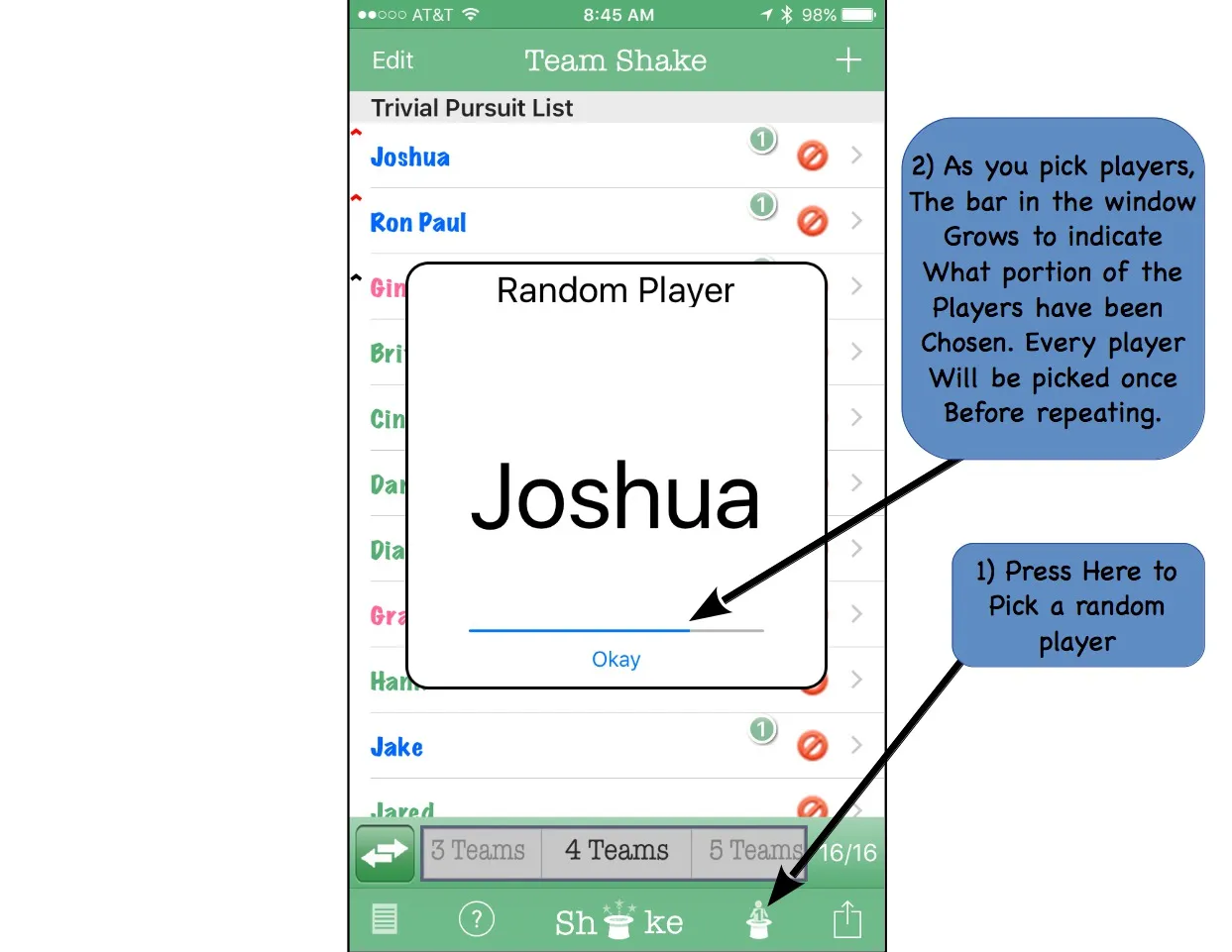
Sometimes you don’t want teams at all — just one random person. Repeatedly pressing the random-player button picks members one at a time without repeats: Team Shake won’t choose the same person twice until everyone present has been picked once, shown by the progress bar. This progress resets if the app restarts or you load a different list; marking someone absent doesn’t reset it, but an absent member’s turn may simply be skipped.
Next steps
- Using Teams & Loading Saved Lists — what to do once teams are generated
- Advanced Team Selection Scenarios — balanced, gendered, and grouped teams
- Configuration Options — the full settings reference